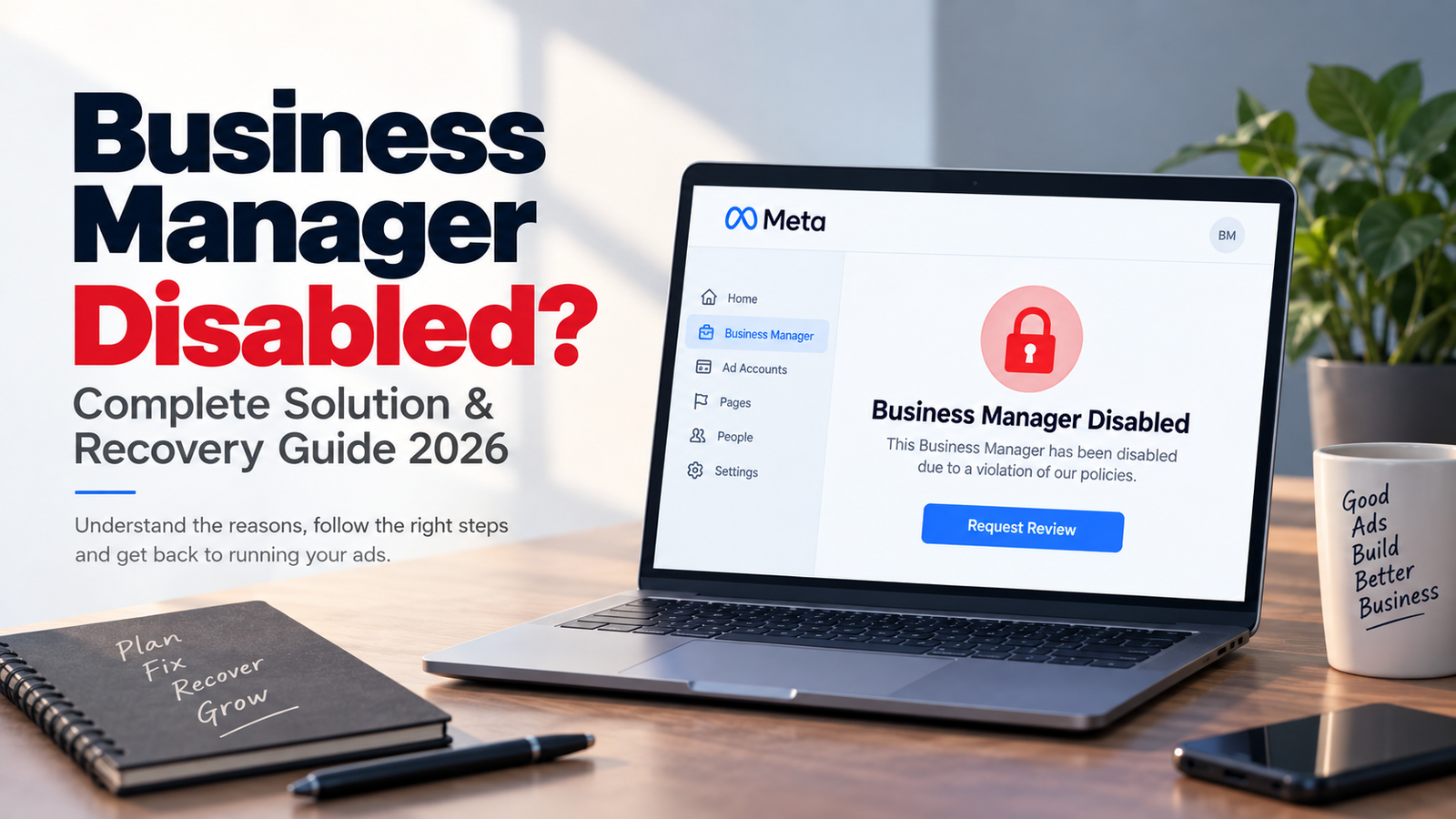
If you woke up to find your Facebook Business Manager disabled, you're not alone. Every week, thousands of advertisers and agencies face this exact issue — ad accounts frozen, campaigns paused, and access to Business Manager suddenly blocked without warning. At FBAPI, we've helped businesses recover, replace, and safeguard their Business Managers for years, and in this guide we'll walk you through exactly why this happens and what you can do about it.
What Does "Business Manager Disabled" Actually Mean?
When Meta disables a Business Manager, it means the entire account — including every ad account, Page, pixel, and team member connected to it — loses access to advertising tools. This is different from a single ad account being restricted; a disabled Business Manager affects everything managed under it. Meta typically takes this step when its automated systems or review team flag activity that appears to violate the Meta Advertising Standards, Business Help Center policies, or Terms of Service.
Common Reasons Why a Facebook Business Manager Gets Disabled
1. Advertising Policy Violations
Ads promoting misleading claims, prohibited products, or content that violates Meta's Advertising Standards are the single biggest trigger. Even a few flagged ads across accounts linked to the same Business Manager can result in a full disable.
2. Payment and Billing Irregularities
Failed payments, disputed charges (chargebacks), or using a payment method previously flagged for fraud can trigger an automatic security review and disable the Business Manager as a precaution.
3. Multiple Accounts or VPN Usage
Meta's systems actively detect when several Business Managers or ad accounts appear to be linked to the same person, device, or network in ways that break the "one person, one identity" rule. Logging in through VPNs, shared IPs, or unusual devices increases this risk significantly.
4. Suspicious Login or Security Activity
Logins from unfamiliar locations, compromised admin accounts, or unusual access patterns can cause Meta's security systems to lock down a Business Manager to protect it — even if no rule was intentionally broken.
5. Business Verification Problems
Mismatched business information, inconsistent legal names across documents, or an incomplete business verification submission can lead to restrictions on the entire Business Manager, not just the verification status.
6. Copyright or Intellectual Property Reports
Repeated intellectual property complaints against ads, Pages, or creative assets managed within a Business Manager can result in disablement, especially if multiple reports accumulate over a short period.
Step-by-Step: What to Do When Your Business Manager Is Disabled
- Read the notification carefully. Meta usually specifies (at least broadly) which policy or issue triggered the disable. This determines your next steps.
- Submit an appeal through Meta Business Help Center. Go to business.facebook.com, and if prompted, follow the appeal link provided in the disable notice. Avoid creating a brand-new Business Manager while an appeal is pending, as this can be seen as evasion and reduce your chances of recovery.
- Gather and submit supporting documents. This may include a government-issued business registration document, proof of address, payment verification, or an explanation letter, depending on what Meta requests.
- Review and fix the underlying issue. If specific ads or Pages caused the disable, be prepared to explain corrective action — simply reapplying without addressing the root cause rarely works.
- Be patient and follow up appropriately. Appeal reviews can take anywhere from a few days to several weeks. Submitting multiple duplicate appeals does not speed up the process and can sometimes slow it down.
- Get expert help if the appeal is rejected. If self-appeals fail, professional Business Manager recovery services (like our team at FBAPI) can review your case, identify overlooked issues, and guide you through a proper resubmission or account restructuring.
How to Prevent Business Manager Disables in the Future
- Follow Meta's Advertising Standards closely before launching any campaign, and review ad copy, landing pages, and creatives for policy compliance.
- Use consistent, verified payment methods and keep billing information up to date.
- Avoid logging into multiple Business Managers from shared devices, VPNs, or unfamiliar networks.
- Complete business verification fully and accurately the first time, matching your legal documents exactly.
- Limit admin access to trusted team members only, and enable two-factor authentication on all linked accounts.
- Monitor your Business Manager regularly through Meta Business Suite for early warnings or policy notices.
Final Thoughts
A disabled Business Manager can feel like a major setback, especially when active campaigns and client accounts are involved, but most cases are recoverable with the right approach. The key is understanding exactly why the disable happened, addressing it honestly, and following Meta's appeal process correctly rather than rushing to create replacement accounts. If you're stuck or your appeal has already been rejected, the FBAPI team is here to help you diagnose the issue and get your advertising back on track.